2 Feature
One click, and Vinted is filled in
Okizy opens Vinted’s sell form and fills every field for you, photos included, even the category, brand and size menus. You check it, then you click Publish.
Sign up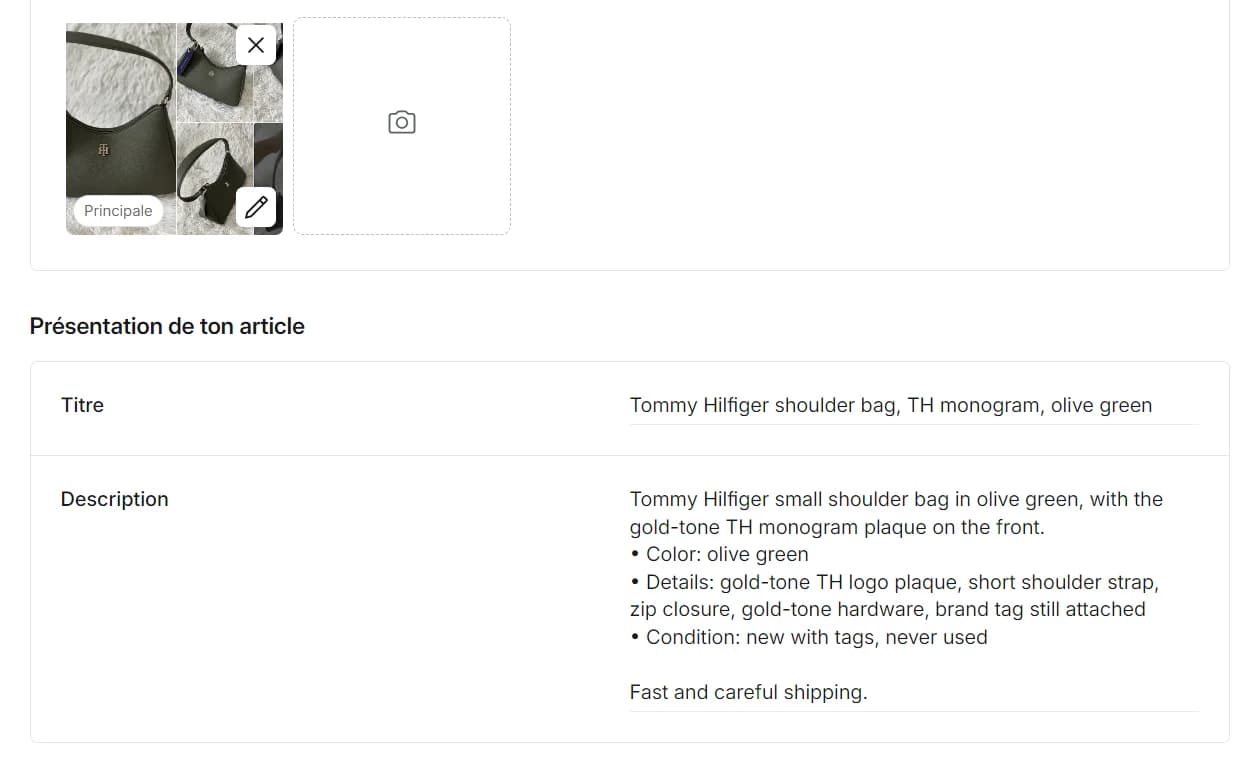
How it works
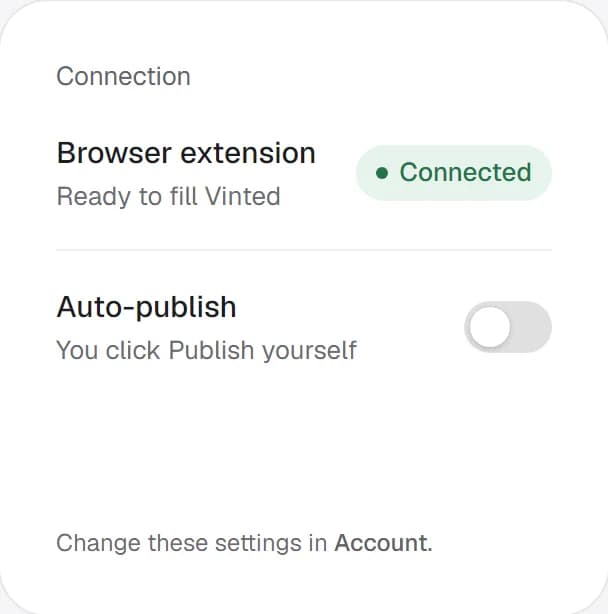
Step 1: Install the extension
Add Okizy to Chrome or Edge on your computer and connect it to your account.
Step 2: Click Send to Vinted
Vinted opens in a new tab and fills itself: photos, text and menus.

Step 3: Check and publish
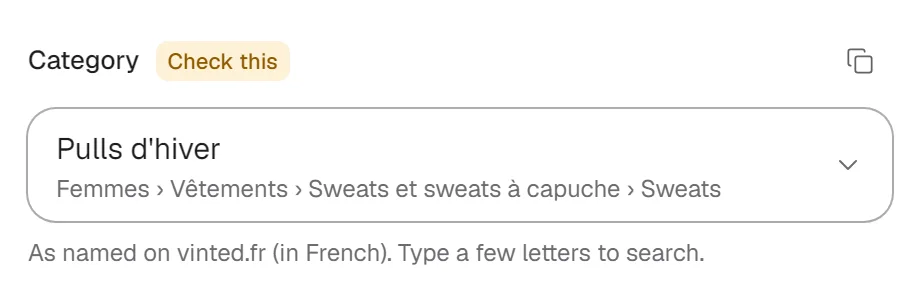
Fields Okizy wasn’t sure about are highlighted in yellow. Check them, then click Publish.
What you get
- One click opens Vinted, already filled
- Photos uploaded for you
- Category, brand and size picked in Vinted’s menus
- Uncertain fields highlighted in yellow
- You check, then click Publish
FAQ
Send to Vinted: your questions
More answers on the home page.
A computer with Chrome or Edge, the Okizy extension, and a Vinted France account you’re logged into.
No. It fills the form and you click Publish on Vinted yourself. If you prefer, auto-publish can click it for you.
Fields Okizy wasn’t sure about, or couldn’t match in Vinted’s menus. Check them before you publish.
No. The extension works in the Vinted tab you’re already logged into, in your own browser.